If you’ve been using ChatGPT and suddenly hit a “Too Many Concurrent Requests” error, you’re not alone. This message can pop up unexpectedly, but the good news is it’s almost always temporary and fixable within minutes. This guide breaks down exactly what causes the error and walks you through every effective fix.
What Does “Too Many Concurrent Requests” Mean in ChatGPT?
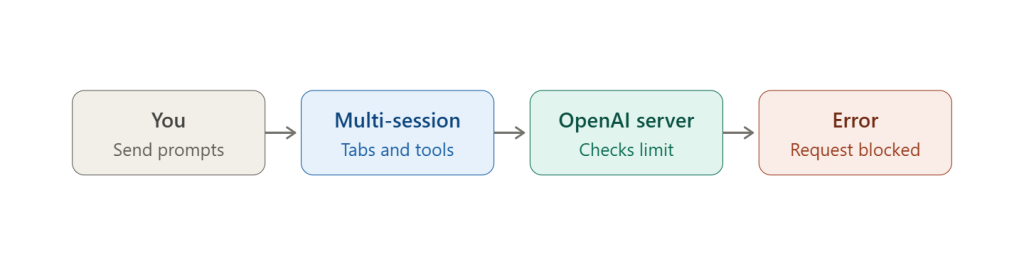
A concurrent request is a request that runs at the same time as another. When you send a message to ChatGPT, it opens a connection to OpenAI’s servers to process your input and stream back a response. If multiple requests are opened simultaneously — whether from different tabs, sessions, or automated tools — ChatGPT sees this as concurrent activity.
OpenAI enforces concurrency limits to manage server load, prevent abuse, and maintain response quality for all users. When you exceed the number of simultaneous requests allowed for your account tier, ChatGPT blocks additional requests and returns this error.
This is different from being permanently blocked or banned. It’s a soft limit — a temporary throttle that resets after a short period.
The key distinction to understand:
- Temporary overload — the error clears on its own within minutes
- Account-specific limits — tied to your subscription tier (free vs. Plus vs. API usage)
- Platform-wide issues — OpenAI’s servers are under stress and affecting all users
Why Does ChatGPT Show the Too Many Concurrent Requests Error?
Sending Too Many Prompts Too Quickly
The most common trigger is rapid-fire input. If you’re submitting prompts back-to-back without waiting for a full response, or you have ChatGPT open in multiple browser tabs and are using several at the same time, you’re creating concurrent sessions that stack up against your limit.
Automated workflows are a major culprit here. If you’re running scripts, browser automations, or any tool that fires prompts programmatically without rate-limiting logic, it’s very easy to exceed the concurrency threshold within seconds.
OpenAI Server Overload
Sometimes the issue has nothing to do with your behavior. OpenAI’s infrastructure handles hundreds of millions of requests daily. During peak usage periods — typically weekday mornings in the US, right after major product announcements, or during high-traffic events — server congestion can trigger rate limit errors even for normal usage.
These platform-wide slowdowns are outside your control. Checking OpenAI’s server status (covered below) will tell you quickly whether this is the case.
Browser Extensions or Third-Party Tools
Certain browser extensions interact with ChatGPT in the background. Privacy tools, AI assistant extensions, or productivity add-ons may be pinging ChatGPT repeatedly without your knowledge. Extensions that inject scripts into web pages or intercept network requests can cause duplicate or looping requests.
Third-party ChatGPT clients, Chrome extensions that enhance the ChatGPT UI, and API integration tools are all potential sources of unintentional concurrent requests.
Network or Session Issues
An unstable internet connection can cause partially completed requests to hang open. ChatGPT’s servers may treat a dropped connection as an active session, effectively counting it against your concurrency limit. Reconnecting and sending new prompts then pushes you over the threshold.
Duplicate requests can also occur when the browser resends a request due to a timeout, resulting in the same prompt being processed twice simultaneously.
How to Fix the Too Many Concurrent Requests Error in ChatGPT
Wait a Few Minutes
The simplest fix is patience. ChatGPT’s concurrency limits are designed to reset after a short cooldown — typically 1 to 5 minutes. If you’ve been using ChatGPT heavily or across multiple tabs, stop all activity, let the sessions expire, and try again.
This works for the majority of cases without any further action.
Refresh ChatGPT
A page refresh clears the active session state in your browser and forces a clean reconnection to OpenAI’s servers. Press Ctrl + Shift + R (Windows/Linux) or Cmd + Shift + R (Mac) for a hard refresh that bypasses the cache.
If you’re using the ChatGPT mobile app, close it completely from your app switcher and reopen it.
Log Out and Log Back In
Logging out ends all active sessions tied to your account. After logging back in, you start fresh with no hanging or stale connections. This is particularly effective if you’ve been logged into ChatGPT across multiple devices simultaneously.
Steps:
- Click your profile icon (bottom-left on desktop)
- Select Log out
- Wait 30 seconds
- Log back in with your credentials
Close Extra Tabs and Devices
Each open ChatGPT tab can maintain an active connection. If you have ChatGPT open in three browser tabs and you’re actively using two of them, that counts as concurrent sessions. Close every tab except the one you need and make sure you’re not logged in on another device at the same time.
Clear Browser Cache and Cookies
Corrupted or outdated cached data can cause session management issues. Clearing your cache gives ChatGPT a clean slate.
Steps (Chrome):
- Open Settings → Privacy and Security
- Click Clear browsing data
- Select Cookies and other site data and Cached images and files
- Set the time range to Last 7 days or All time
- Click Clear data and reload ChatGPT
Disable Browser Extensions
Temporarily disable all browser extensions, especially:
- Privacy badgers and ad blockers
- AI writing assistants (Compose AI, Merlin, etc.)
- Automation tools (iMacros, Tampermonkey scripts)
- ChatGPT enhancement extensions
To test quickly, open ChatGPT in an Incognito/Private window — extensions are disabled by default in incognito mode. If ChatGPT works fine there, an extension is your culprit. Re-enable them one by one to identify which one is causing the issue.
Try a Different Browser or Device
If the issue persists after the above steps, switch browsers entirely. A problem specific to Chrome may not appear in Firefox or Edge. Alternatively, try on your phone using mobile data instead of Wi-Fi to rule out network-specific causes.
This isolation approach is the fastest way to determine whether the issue is your browser, your network, or your account.
Check OpenAI Server Status
If none of the above fixes work, the issue may be on OpenAI’s end. Visit status.openai.com to see real-time information about:
- Active incidents
- Ongoing maintenance
- Historical uptime data
- Degraded performance alerts
If there’s an active incident, there’s nothing to do except wait for OpenAI to resolve it.
How to Prevent the Error in the Future
A few simple habits will prevent this error from disrupting your workflow:
- Avoid rapid prompt submissions — wait for a full response before sending the next message
- Limit active sessions — use ChatGPT in a single tab on a single device
- Space out large tasks — if you’re processing lots of content, add pauses between requests
- Audit your extensions — regularly review which extensions interact with ChatGPT
- Use a stable internet connection — avoid using ChatGPT on unreliable or switching networks
- If using the API, implement rate limiting — add delays and retry logic into your code to stay within concurrency bounds
Does ChatGPT Plus Reduce Concurrent Request Errors?
ChatGPT Plus users do get meaningfully better access. The paid tier comes with higher usage limits, faster response times, and priority access during high-traffic periods. In practice, Plus users encounter this error far less frequently than free users.
That said, Plus doesn’t eliminate the error entirely. You can still trigger it by opening many sessions simultaneously or using aggressive automation. The limits are higher, not infinite.
For API users, limits are tier-based and tied to your usage level — higher-tier API accounts get substantially more requests per minute and higher concurrency allowances.
If you’re regularly hitting this error on a free account and ChatGPT is important to your workflow, upgrading to Plus is a practical solution.
Too Many Concurrent Requests vs. Too Many Requests Error
These two errors are related but not identical:
| Error | Meaning | Cause | Reset Time |
|---|---|---|---|
| Too Many Concurrent Requests | Multiple active sessions at once | Simultaneous tabs, tools, or automation | 1–5 minutes |
| Too Many Requests (429) | Exceeded rate limit within a time window | Sending too many messages too quickly | Minutes to hours |
| API Rate Limit Exceeded | API quota reached | High API call volume | Depends on tier |
| ChatGPT Overloaded | Server-side congestion | Platform-wide high traffic | Variable |
The concurrent requests error is about simultaneous connections. The rate limit error is about volume over time. Both are temporary, but they require slightly different responses — concurrency issues clear up by closing sessions, while rate limit errors require waiting out the cooldown window.
When the Problem Is on OpenAI’s Side
Not every error is something you can fix. OpenAI’s infrastructure occasionally experiences:
- Unexpected outages caused by hardware or software failures
- Planned maintenance windows that temporarily reduce capacity
- Traffic spikes following product launches or media coverage
- Regional slowdowns affecting users in specific geographic areas
When the issue is platform-wide, the most reliable fix is simply waiting. Check status.openai.com and follow @OpenAI or @OpenAIDevs on X (Twitter) for real-time updates during outages.
Frequently Asked Questions
What does too many concurrent requests mean in ChatGPT?
It means you have too many active ChatGPT sessions running at the same time. OpenAI limits the number of simultaneous connections per account, and exceeding that limit triggers this error. Closing extra tabs and waiting a few minutes usually resolves it.
How long does the ChatGPT request limit last?
The cooldown is typically 1 to 5 minutes for concurrent request errors. More severe rate limit situations (usually API-related) can last longer, up to an hour in some cases.
Can ChatGPT Plus fix this error?
ChatGPT Plus significantly reduces how often this error appears by giving you higher limits and priority server access. However, it doesn’t completely eliminate the possibility — aggressive simultaneous usage or platform-wide outages can still trigger it.
Why does ChatGPT think I sent too many requests?
ChatGPT counts open connections, not just completed messages. If you have multiple tabs open, recently submitted several rapid prompts, or have browser extensions interacting with ChatGPT in the background, the system registers more concurrent activity than your tier allows.
Is the error caused by OpenAI servers?
Sometimes yes, sometimes no. If the error appears suddenly without unusual usage on your part, check status.openai.com. If there’s an active incident, the problem is on OpenAI’s end. If the status page shows all systems normal, the issue is likely with your sessions or browser setup.
Conclusion
The “Too Many Concurrent Requests” error in ChatGPT looks alarming but is almost always temporary. In most cases, closing extra tabs, waiting a few minutes, and refreshing the page is all you need. For persistent issues, clearing your cache, disabling extensions, or logging out and back in will typically clear things up.
If none of that works, OpenAI’s servers may be under strain — check the status page and give it time. Going forward, keeping your usage to a single active session and avoiding rapid-fire prompts will prevent the error from becoming a recurring problem.