Managing your ChatGPT account security starts with knowing how to update or reset your password. Whether you’ve forgotten your password or simply want to change it for security reasons, the process is quick — as long as you know which login method you used when signing up.
This guide walks you through every scenario: changing an existing password, resetting a forgotten one, and what to do if you don’t see a password option at all.
Can You Change Your ChatGPT Password?
Yes — but only if your account uses an email and password to log in.
ChatGPT accounts are managed through OpenAI. When you sign up to use ChatGPT, you have the option to create an account with your email address and a custom password, or log in using Google, Microsoft, or Apple.
If you chose a social login method, there’s no ChatGPT-specific password to change. Your password is managed entirely by that third-party provider — not OpenAI.
Here’s a quick breakdown:
- Email/password account → You can change your password directly through OpenAI
- Google login → Change your password through Google
- Microsoft login → Change your password through Microsoft
- Apple login → Change your password through Apple ID
Not sure which method you used? Try logging in and notice which option works. If you always click “Continue with Google,” that’s your login method.
How to Change Your ChatGPT Password
If you know your current password and want to update it, follow these steps:
- Go to chat.openai.com and click Log In
- Enter your email and current password to sign in
- Once logged in, click your profile icon in the top-right corner
- Select Settings
- Navigate to the Security section
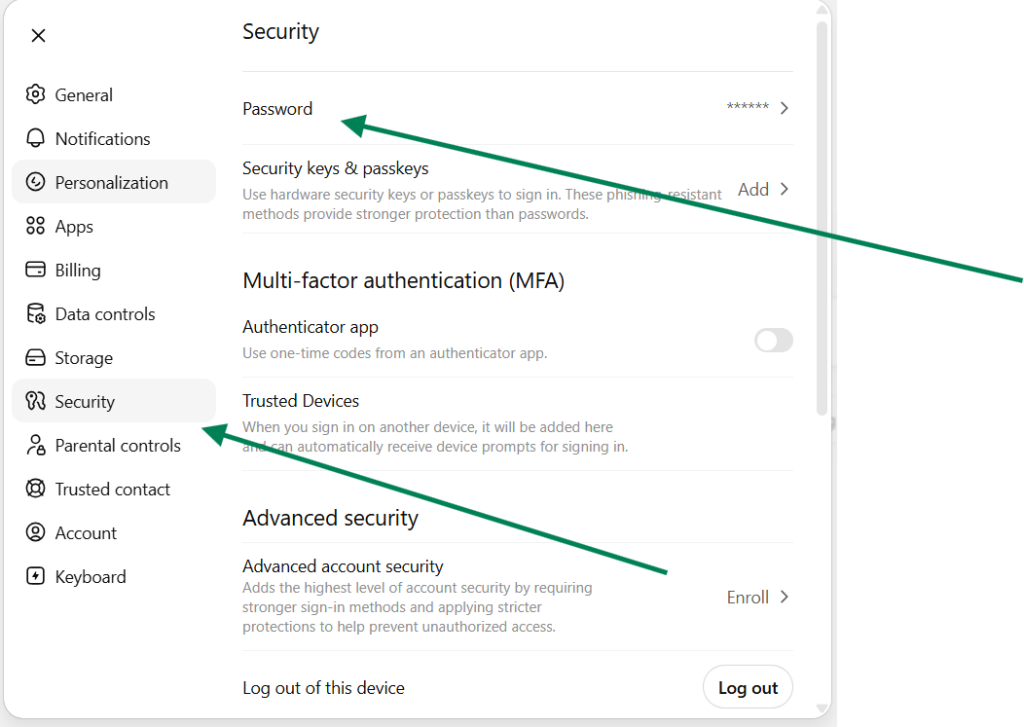
- Click Password
- Enter your current password, then your new password
- Confirm the new password and save
If you don’t see a “Change Password” option in settings, it almost certainly means your account uses a social login. In that case, skip to the section on Google, Apple, or Microsoft passwords below.
How to Reset a Forgotten ChatGPT Password
Reset Password From the Login Page
If you’ve forgotten your password, you can reset it without needing to know the old one. Here’s how:
- Go to chat.openai.com
- Click Log In
- Enter your email address
- Click Forgot password? below the password field
- Check your inbox for a password reset email from OpenAI
- Click the reset link in the email
- Enter and confirm your new password
- Log in using your updated credentials
A few things to keep in mind:
- Check your spam or junk folder if the email doesn’t arrive within a few minutes
- Reset links expire — typically within 15–30 minutes, so use the link promptly
- Make sure you’re entering the exact email address tied to your OpenAI account
What to Do if the Reset Email Never Arrives
If no reset email shows up after a few minutes, consider the following:
- Wrong email address — You may have a typo, or the account might be under a different email
- Social login account — If you originally signed up with Google or Apple, there’s no password to reset via email
- Email delays — Occasionally there are short delivery delays; wait a few minutes and refresh your inbox
- Incorrect email client — If you use multiple email accounts, check all of them
- Spam filters — Some corporate or custom domain emails filter OpenAI messages aggressively
If none of these resolve the issue, visit help.openai.com and submit a support request.
Why You May Not See a Password Option
This is one of the most common points of confusion. Many users sign up for ChatGPT using a social account and later try to change a password that doesn’t exist in the ChatGPT system.
Here’s what’s happening:
- Google login: OpenAI never stores your password. Authentication happens entirely through Google’s system.
- Microsoft login: Same situation — your Microsoft account credentials are used, and OpenAI has no password record for you.
- Apple login: Apple handles the login. OpenAI only receives a verified identity token.
In all three cases, you won’t find a “Change Password” option anywhere in ChatGPT settings. That option simply doesn’t apply to your account.
To change the password for these accounts, you need to go directly to the provider.
How to Make Your ChatGPT Account More Secure
Resetting your password is a good start, but here are a few additional steps to keep your account protected:
- Use a strong, unique password — Combine uppercase letters, lowercase letters, numbers, and symbols. Aim for at least 12 characters.
- Don’t reuse passwords — If your ChatGPT password is the same as your email or banking password, a single breach puts everything at risk.
- Enable two-factor authentication (2FA) — OpenAI supports 2FA. Go to Settings → Security to enable it. This adds an extra verification step each login.
- Log out on shared devices — If you use ChatGPT on a public or shared computer, always log out when done.
- Watch for phishing emails — Fake OpenAI emails do circulate. Never click “reset password” links from unsolicited emails. Always go directly to chat.openai.com.
- Use a password manager — Tools like 1Password or Bitwarden generate and store secure passwords so you never have to reuse or memorize them.
Troubleshooting Common Password Problems
Password Reset Link Not Working
Reset links expire quickly. If clicking the link shows an error, go back to the login page and request a new one. Also make sure you’re opening the most recent email — older reset emails become invalid once a new one is sent.
Incorrect Password Error
Double-check for caps lock, extra spaces, or autocorrect errors. If you’re confident the password is right and it’s still failing, request a reset. It’s also possible you’re using a different email address than the one on file.
Locked Out of Your Account
After multiple failed login attempts, OpenAI may temporarily lock the account. Wait 15–30 minutes before trying again, or use the password reset flow to regain access immediately.
Cannot Remember Login Method
Try all four options on the login page: Google, Microsoft, Apple, and email/password. Whichever one proceeds to your account is your correct login method. If none work, contact OpenAI support.
Account Created With Google Instead of Password
If you signed up with Google but now want an email/password login, OpenAI doesn’t currently support converting between login methods. Your best option is to continue using Google login, or create a new account with an email address.
Frequently Asked Questions
How do I change my ChatGPT password?
If you use an email/password account, go to ChatGPT Settings → Security → Change Password. If you’ve forgotten your password, click “Forgot password?” on the login page and follow the reset link sent to your email.
Why can’t I reset my ChatGPT password?
Most likely, your account was created using Google, Apple, or Microsoft login. In that case, there’s no password stored with OpenAI — you’ll need to update your password through the respective provider.
Can I change my ChatGPT password without email access?
Not easily. The password reset process requires access to the email on your account. If you’ve lost access to that email, your best option is to contact OpenAI support at help.openai.com.
Does ChatGPT support two-factor authentication?
Yes. OpenAI supports two-factor authentication. You can enable it from your account settings under the Security tab. It’s strongly recommended for added account protection.
What if I signed up with Google or Apple?
You won’t have a ChatGPT-specific password. To change your login credentials, update your password directly in Google Account settings or Apple ID settings. Those changes will automatically apply when you log into ChatGPT.
Conclusion
Changing or resetting your ChatGPT password is straightforward once you know which login method your account uses. Email/password accounts can be updated directly through OpenAI settings or the password reset flow. Social login accounts (Google, Microsoft, Apple) require updating your credentials with the respective provider.
Most password-related issues are quick to fix. If a reset email doesn’t arrive, check your spam folder, confirm you’re using the right email, and verify your login method. For ongoing security, use a unique strong password, enable two-factor authentication, and avoid reusing credentials across platforms.