Creating a 3D model traditionally takes time, technical knowledge, and the right software. You may need to shape the model, add textures, adjust its geometry, and prepare it for a game, animation, or 3D print.
Meshy AI aims to make this process easier. It uses artificial intelligence to turn text descriptions and images into 3D models. It also offers tools for texturing, rigging, and animation.
But how well does it work? Is Meshy AI free? Can you use its models in commercial projects? And is it a good choice for beginners?
This guide covers Meshy AI’s main features, pricing, practical uses, limitations, and alternatives to help you decide whether it fits your needs.
What Is Meshy AI?
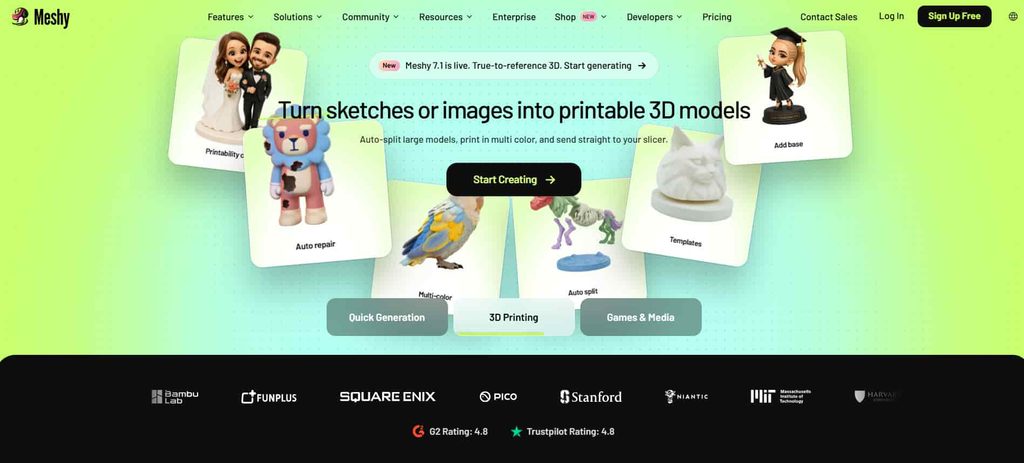
Meshy AI is an AI-powered 3D creation platform that helps users generate and edit 3D assets from text prompts and images. It is designed for people who want to create 3D content without building every model from scratch.
For example, you could describe a wooden treasure chest with metal corners and detailed carvings. Meshy AI can use that description to generate a 3D model. You can also upload an image and use it as a reference for creating a model.
The platform supports several stages of the 3D creation process. You can generate a model, apply textures, prepare supported characters for animation, and export assets for use in other applications.
Meshy AI is useful for game developers, 3D artists, designers, hobbyists, and people exploring 3D printing. Beginners can use it to create their first models, while experienced creators can use it to speed up parts of their existing workflow.
However, generating a model is not the same as finishing a production-ready asset. Some outputs still need manual editing, especially when a project requires precise dimensions, clean geometry, or consistent details.
What Can You Do With Meshy AI?
Meshy AI supports several types of 3D creation. Here are the main ways you can use it.
1. Generate 3D Models From Text
Text-to-3D lets you describe an object in words and generate a corresponding 3D model.
You might enter a prompt such as:
“A small medieval wooden house with a stone chimney, a red roof, and weathered timber walls. Isolated object, stylized fantasy game asset.”
Meshy AI interprets the description and generates a model based on the details you provide.
This feature is useful when you have an idea but no reference image. You can explore different designs by changing the object’s shape, materials, colors, or artistic style.
For better results, describe the subject clearly. Include its important physical features and intended style. Avoid combining too many unrelated objects in one prompt.
The result may not match every detail in your description, so review the model before using it in a project.
2. Turn Images Into 3D Models
Image-to-3D is useful when you already have a visual reference.
You can upload a product image, character concept, or other suitable image and let Meshy AI generate a 3D representation.
For example, a designer could upload a concept image of a robot and use the result as a starting point for a game asset.
Meshy AI also supports workflows using multiple views of the same object. Multiple views can provide more information about its shape than a single image.
However, a 2D image does not show every side of an object. The AI must estimate missing information, which can lead to differences between the reference and the generated model.
Use clear reference images and inspect the result from different angles. If accuracy matters, expect to make additional adjustments.
If you’re exploring AI-generated visuals before turning concepts into 3D assets, check out these AI photo prompts for ideas and inspiration.
3. Create and Edit 3D Textures
A 3D model needs more than a shape to look realistic or fit a particular art style. Textures help define its surface appearance.
Meshy AI includes AI texturing tools that let you create or change a model’s appearance using text and image prompts.
For example, you could take a basic wooden table and apply a prompt describing dark oak, visible grain, and a slightly worn finish.
This can save time when exploring different materials or creating variations of an existing asset.
You can also upload supported models created in other 3D applications. That means you do not have to generate every model inside Meshy AI to use its texturing tools.
Still, inspect the textures for inconsistencies, especially around edges, small details, and areas that will be visible in close-up shots.
4. Prepare Characters for Animation
Meshy AI offers rigging and animation features for supported models.
Rigging involves creating a structure that allows a 3D character to move. Animation then uses that structure to produce movements such as walking, running, or other actions.
These tools can help creators prepare character assets without completing every step manually.
However, automated rigging does not guarantee perfect movement. You may need to check joint placement, deformations, and animation quality before using a character in a finished project.
5. Export Models for Other Applications
Meshy AI supports several export formats, including GLB, GLTF, FBX, OBJ, STL, USDZ, and 3MF, depending on the feature and workflow.
Different formats serve different purposes.
- FBX: Commonly used in game development and animation workflows.
- GLB and GLTF: Useful for web-based 3D experiences and supported real-time applications.
- OBJ: A widely supported format for transferring 3D geometry.
- STL: Commonly used for 3D printing workflows.
- USDZ: Useful for supported augmented reality applications.
- 3MF: Designed for transferring 3D-printing data.
Check the export options available for your selected model and plan. You may also need another application to inspect, edit, or prepare the file before using it.
Key Features of Meshy AI
Meshy AI combines several tools in one platform. These are its most important features.
Text-to-3D and Image-to-3D Generation
These tools help you move from an idea or visual reference to a 3D asset.
Text-to-3D works best when you want to explore an idea from scratch. Image-to-3D is more suitable when you already have a reference that guides the design.
Both can reduce the amount of manual modeling required for early concepts and simple assets.
AI Texturing
AI texturing lets you change a model’s surface appearance using prompts or reference images.
This is useful when you need to test different materials or styles without creating every texture manually.
Smart Topology and Remeshing
Topology describes how a model’s polygons are arranged. It affects how the model behaves during editing, animation, and rendering.
Meshy provides remeshing and Smart Topology options to help users work with model geometry. Availability and credit costs vary by tool and model version.
These features can help prepare an asset for a particular workflow, but you should still check polygon distribution and geometry quality when technical requirements are strict.
Rigging and Animation
The platform includes tools for preparing supported characters for movement. This can be useful for prototypes and early animation work.
For more demanding projects, review the resulting skeleton and movement before using the asset in production.
API and Software Integrations
Meshy provides API access for supported generation workflows. Developers can use the API to integrate 3D generation into applications or automated processes.
The platform also offers integrations for tools such as Blender and Unity.
These options are more relevant to developers and experienced creators who want to include AI-generated assets in an existing workflow.
How to Use Meshy AI
You do not need to be an experienced 3D artist to get started. Follow these steps to create your first model.
Step 1: Create an Account
Visit the official Meshy AI website at https://www.meshy.ai/ and create an account.
Review the available plan options before you begin. The free plan is a useful starting point if you want to explore the platform without paying for a subscription.
Step 2: Choose a Generation Method
Decide whether you want to generate a model from text or an image.
Choose text-to-3D if you have an idea but no reference image. Choose image-to-3D if you have a drawing, photograph, or concept image that can guide the model.
Step 3: Write a Clear Prompt or Upload an Image
If you use text-to-3D, describe the object and its important features.
For example:
“Create a low-poly camping tent with an orange fabric cover, dark support poles, and a compact rectangular base. Use a clean, stylized design suitable for a mobile adventure game.”
This prompt identifies the subject, materials, colors, and intended style.
You can experiment with different descriptions if the first result does not meet your expectations.
If you use image-to-3D, select a clear reference image. For objects with important details on multiple sides, consider whether a multi-view workflow is available for your selected tool and plan.
Step 4: Generate and Review the Model
Start the generation process and wait for the result.
Once the model is ready, inspect it from multiple angles. Check whether its shape, proportions, and major details match your expectations.
Do not judge the model only from its preview image. A model can look good from one angle but contain problems elsewhere.
If necessary, revise the prompt or try another generation.
Step 5: Apply Textures or Prepare the Model
Use the texturing tools if the model needs a different surface appearance.
If you are creating a character, explore the available rigging and animation options.
You can also use compatible geometry tools to refine the model before exporting it.
Step 6: Export and Test the Asset
Choose a supported file format that suits your intended application.
For example, you might export a game asset as FBX or GLB, depending on your engine and workflow. For 3D printing, you may use STL or 3MF.
Open the exported file in the relevant software and check its geometry, scale, textures, and compatibility.
If you plan to print the model, confirm that its geometry and wall thickness are suitable for your printer and slicer settings. An exported file is not automatically guaranteed to be printable.
Meshy AI Pricing: Is It Free?
Yes. Meshy AI offers a free plan, along with paid options for individuals and teams.
The platform uses a credit-based system. Different operations consume different amounts of credits, so the number of models you can create depends on the tools and settings you use.
Meshy’s published information lists the following individual plans. Prices and included features can change, so check the official pricing page before subscribing.
| Plan | Published price | Monthly credits |
|---|---|---|
| Free | $0 | 100 |
| Pro | $20/month | 1,000 |
| Premium | $40/month | 3,000 |
| Ultra | $100/month | 8,000 |
Source: Meshy’s published plan comparison. Confirm the current prices and billing terms on its official pricing page.
What Does the Free Plan Include?
The free plan provides 100 credits per month and does not require a credit card to get started.
It is suitable for exploring the interface and testing basic generation workflows. However, free-plan users face restrictions that can affect their workflow, including lower queue priority and different model download and licensing terms.
Do not assume that every feature or export option available to paid users is also available for free.
How Do Meshy AI Credits Work?
Credits are used when you perform tasks such as generating models or applying textures.
The amount depends on the operation and model version. For example, Meshy’s documentation lists different credit costs for model generation, texturing, and Smart Topology operations.
A single asset may require several operations. You might spend credits generating a model, then use more to create or refine its textures.
This is why the monthly credit allowance matters more than the subscription price alone. Consider how many generations and revisions you expect to make before choosing a plan.
Monthly subscription credits generally reset each month rather than accumulating indefinitely. Check the current billing terms for details.
Which Meshy AI Plan Should You Choose?
The right plan depends on how often you create models.
- Free: Suitable for exploring the platform and testing its basic workflow.
- Pro: Worth considering if you create assets regularly and need paid-plan features.
- Premium: Better suited to users who need a larger monthly credit allowance.
- Ultra: Designed for individual users with heavier generation needs.
Meshy also offers team and enterprise options for collaborative or larger-scale workflows.
Compare the available credits, download limits, queue priority, and licensing terms before paying. A more expensive plan is not automatically better if you only create a few models each month.
Pros and Cons of Meshy AI
Meshy AI can simplify several parts of 3D creation, but it has limitations.
Pros
1. Accessible to beginners
You can start with a text prompt or image instead of learning every modeling technique first.
2. Speeds up early asset creation
Generating a starting model can be faster than building it from scratch. This is particularly useful during concept development and prototyping.
3. Multiple tools in one platform
Model generation, texturing, rigging, and animation tools can reduce the need to switch between services during early production.
4. Supports common 3D formats
Its export options make it possible to move supported assets into other applications for editing and testing.
5. Offers a free starting point
The free plan lets users explore the platform before committing to a paid subscription.
Cons
1. Results may need manual editing
Generated models do not always match the prompt perfectly. Some need adjustments to their shape, geometry, textures, or proportions.
2. Complex designs can be difficult
Detailed objects and precise visual requirements may require several attempts or additional work in a traditional 3D editor.
3. Credits limit usage
Repeated generations and texture operations can consume credits quickly. Heavy users may need a paid plan.
4. Technical quality still matters
A model that looks good in a preview may not be suitable for animation, game engines, or 3D printing without further preparation.
5. Licensing needs attention
Free and paid plans have different terms. You should understand the applicable license before distributing or selling generated assets.
Is Meshy AI Good for 3D Printing?
Meshy AI can be useful for creating objects that you want to explore as 3D prints. It supports export formats such as STL and 3MF, which are commonly used in 3D-printing workflows.
You could use it to create decorative objects, simple figurines, or concept models.
However, a 3D model is not necessarily ready to print just because it can be exported.
A printable model may need a closed, watertight mesh, suitable wall thickness, appropriate dimensions, and geometry that your slicer can interpret correctly.
Fine details can also be too thin or fragile for your printer.
Before printing, inspect the model in a 3D editor or slicer and repair any problems. For functional parts that must fit together or withstand specific loads, a dedicated CAD application may be a better starting point.
Is Meshy AI Good for Game Development?
Meshy AI can help game developers create prototypes, background objects, props, and other assets.
For example, an indie developer could generate a collection of fantasy objects while testing a game’s visual direction. They could then export suitable models into Unity or Unreal Engine for further development.
The biggest advantage is speed. You can explore ideas without modeling every object manually.
However, game assets must meet technical requirements. Polygon count, UVs, texture resolution, scale, collision geometry, and performance can all affect the final result.
Generated models may require optimization before they are suitable for a real-time game.
Meshy AI is therefore best treated as a tool that supports the development process, rather than a replacement for every part of professional 3D production.
Meshy AI Alternatives
Meshy AI is not the only option for AI-assisted 3D creation. The right alternative depends on what you want to create and how much control you need.
Tripo AI
Tripo AI focuses on generating 3D models from text and images. It is worth comparing if your main goal is to turn visual ideas into 3D assets.
Compare the available generation methods, export options, credit limits, and licensing terms before choosing between the platforms.
Luma AI
Luma AI offers AI tools for visual creation, including workflows related to 3D capture and scene reconstruction. Its suitability depends on the specific product and feature you plan to use.
If you want to reconstruct a real-world object or scene, compare the available capture methods rather than assuming that all AI 3D tools work in the same way.
Blender
Blender is a free, open-source 3D creation application. It provides tools for modeling, sculpting, texturing, rigging, animation, and rendering.
Unlike a prompt-based generator, Blender gives you direct control over the creation process. However, it requires more time to learn.
If you want to create and refine models with precise control, Blender is a strong option. You can also use it alongside Meshy AI to edit generated assets.
Which Alternative Is Best?
There is no single best option for every user.
Choose Meshy AI if you want an integrated AI-assisted workflow for generating and preparing 3D assets.
Compare Tripo AI if you want another text-to-3D or image-to-3D option. Explore Luma AI if your workflow involves its particular scene or 3D capture capabilities. Choose Blender if you want detailed control over modeling and editing.
Check current feature availability, pricing, and licenses before making a decision.
Is Meshy AI Worth It?
Meshy AI is worth considering if you want to create 3D assets quickly without building every model from scratch.
It can be particularly useful for beginners, indie game developers, designers, and creators who need a starting point for models, textures, or animations.
The free plan is a sensible place to begin. It lets you explore the workflow before deciding whether you need more credits or additional features.
However, Meshy AI is not a substitute for checking the quality of your assets. Models intended for professional games, commercial products, or 3D printing may require further editing and testing.
Before purchasing a subscription, try a few representative projects. Check how well the platform handles your specific needs, how many credits your workflow consumes, and whether the license supports your intended use.
The bottom line: Meshy AI can make 3D creation more accessible and speed up early production. Its value depends on whether the time it saves outweighs the cost of credits and any additional editing your projects require.
Frequently Asked Questions About Meshy AI
Is Meshy AI free?
Yes. Meshy AI offers a free plan with 100 monthly credits according to its published pricing information. The free plan has limitations, so check the current terms for download access, available features, and licensing.
Do I need 3D modeling experience to use Meshy AI?
No. You can generate models from text descriptions or images without prior 3D modeling experience. However, learning basic 3D concepts will help you evaluate and refine the results.
Can I use Meshy AI models commercially?
Meshy’s published terms distinguish between free and paid plans. Free-plan outputs use a CC BY 4.0 license, which generally requires attribution. Paid plans provide different ownership and commercial-use terms. Review the current license and ensure that your input materials do not violate anyone else’s rights.
Can Meshy AI create models for Blender?
Yes. Meshy supports exporting models in formats that can be imported into Blender, including formats such as FBX, OBJ, and GLB, depending on the workflow. You can then edit or refine the model in Blender.
Can Meshy AI create models for Unity?
Meshy offers a Unity integration and supports common formats used in game development. You may still need to optimize models, configure materials, and prepare assets for your project.
Can I use Meshy AI for 3D printing?
Yes, it can generate models that may be used in 3D-printing workflows. However, you should inspect and repair the geometry, confirm the dimensions, and check the model in a slicer before printing.
Does Meshy AI support animation?
Yes. Meshy includes rigging and animation tools for supported models. The quality of the final result depends on the model and the intended movement, so inspect the animation before using it in a finished project.
Is Meshy AI better than Blender?
They serve different purposes. Meshy AI focuses on AI-assisted asset generation, while Blender offers detailed manual control over modeling, sculpting, animation, and rendering. Many creators can benefit from using both tools.
How many credits does Meshy AI use per model?
The cost depends on the generation method, model version, and additional operations. Generating a model and applying textures may consume separate credits. Check the credit information displayed in Meshy before starting a task.