Managing your ChatGPT conversations is simple once you know where to look. Whether you want to remove a single chat or wipe your entire history, ChatGPT gives you full control. Most people delete their history for privacy, to reduce clutter, or because they’re on a shared device.
Deleting a chat removes it from your sidebar permanently. It does not affect your account access or ChatGPT’s core functionality in any way.
What Happens When You Delete ChatGPT History?
When you delete a conversation, it disappears from your account immediately. It will no longer appear in your sidebar, and you cannot access it again through ChatGPT’s interface.
Deleted chats are not recoverable. Once you confirm deletion, the conversation is gone. OpenAI may retain data for a short period on their servers for safety and abuse monitoring purposes, but the chat is no longer associated with your active account in any usable way.
There’s an important distinction between deleting history and disabling history. Deleting removes existing conversations. Disabling history stops ChatGPT from saving future conversations altogether. Both options are available, and you can use them independently or together.
Deleting history does not affect your subscription, saved custom instructions, or any other account settings.
How to Delete Individual ChatGPT Conversations
Removing a single chat is the quickest way to clear out specific conversations without touching the rest of your history.
On desktop:
- Open chatgpt.com and sign in.
- Find the conversation in the left sidebar.
- Hover over the conversation title — a three-dot menu icon (⋯) will appear on the right.
- Click the three-dot menu.
- Select Delete.
- Confirm by clicking Delete in the prompt that appears.
On mobile (iOS and Android):
- Open the ChatGPT app.
- Tap the sidebar icon to open your conversation list.
- Long-press the conversation you want to delete, or swipe left on it (iOS).
- Tap Delete.
- Confirm deletion.
The conversation is removed instantly. There is no undo option, so make sure you no longer need the chat before confirming.
How to Delete All ChatGPT History at Once
If you want a clean slate, you can delete every conversation in one action instead of removing them one by one.
Delete All Chats on Desktop
Log in to chatgpt.com.
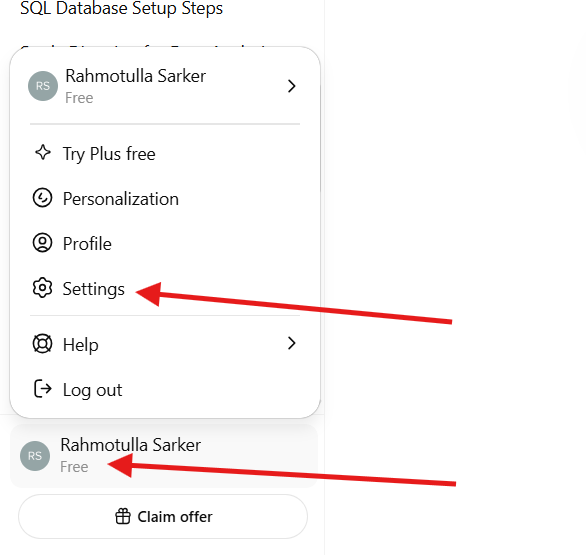
Click your profile icon or name in the bottom-left corner.
Select Settings.
Go to the Data Control Tab.
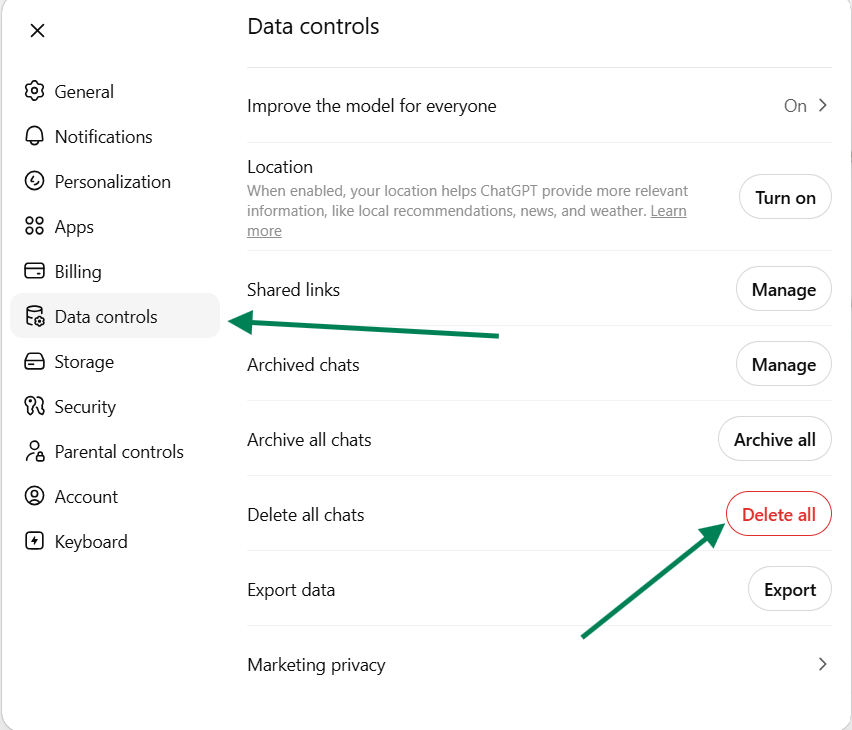
Find the option labeled Clear all chats or Delete all chats.
Click it and confirm.
All conversations are deleted immediately. Your account remains active and your settings are unchanged.
Delete All Chats on Mobile
- Open the ChatGPT app.
- Tap your profile icon (top-left or top-right depending on your device).
- Tap Settings.
- Scroll to find Clear Conversations or Delete All Chats.
- Tap it and confirm the action.
The mobile interface is slightly different from desktop, but the setting is in the same general area — account settings. If you don’t see it immediately, scroll down within the Settings screen.
How to Turn Off Chat History in ChatGPT
Turning off chat history is different from deleting it. When you disable history, ChatGPT stops saving new conversations entirely. Chats you have while history is off won’t appear in your sidebar and won’t be used to train OpenAI’s models by default.
To turn off chat history on desktop:
- Click your profile icon in the bottom-left corner.
- Go to Settings.
- Click Data Controls.
- Toggle off Improve the model for everyone — or look for the Chat History & Training toggle and switch it off.
On mobile:
- Go to Settings in the app.
- Tap Data Controls.
- Disable the chat history toggle.
When history is disabled, a temporary chat mode activates. Conversations still happen normally, but they aren’t saved. Disabling history does not delete your existing conversations — you’ll need to delete those separately if you want them gone.
Can Deleted ChatGPT Conversations Be Recovered?
No. Once you delete a ChatGPT conversation and confirm the action, it cannot be recovered from within the app or website. There is no recycle bin or undo feature.
OpenAI’s systems may retain data temporarily for legal and safety purposes, but that data is not accessible to users and cannot be restored to your account.
The only way to keep a copy of a conversation is to export your data before deleting, or manually copy the content of important chats before removal.
If you accidentally delete something you need, it is permanently gone from your account. This is why exporting your data beforehand is strongly recommended if there’s any chance you’ll want to reference old conversations.
How to Export ChatGPT Data Before Deleting History
Before clearing your history, it’s worth exporting your data. This gives you a downloadable archive of all your conversations in a readable format.
- Log in to chatgpt.com.
- Click your profile icon and open Settings.
- Go to Data Controls.
- Click Export data.
- Confirm the request — OpenAI will send a download link to your email.
- Check your inbox and download the file (usually a
.ziparchive containing your conversations in JSON and HTML format).
The export typically arrives within a few minutes to a few hours depending on how much data your account holds. The downloaded file includes all saved conversations, and you can open the HTML version in any browser for easy reading.
This is especially useful if you’ve had productive research sessions, saved reference material in chats, or want a record of past work before wiping your account clean.
Troubleshooting Common Problems
Can’t Find the Delete Option
If hovering over a conversation doesn’t show the three-dot menu on desktop, try refreshing the page. On mobile, try long-pressing the conversation instead of tapping. Make sure you’re logged in — guest or temporary sessions may not show the full sidebar.
Deleted Chats Still Appearing
After deleting, if a conversation still shows in the sidebar, do a hard refresh (Ctrl+Shift+R on Windows, Cmd+Shift+R on Mac) or close and reopen the app. This is usually a display cache issue and resolves on its own within a few seconds.
Mobile App Not Syncing Properly
If changes made on desktop aren’t reflected in the mobile app, log out of the app and log back in. Alternatively, clear the app cache in your device settings. Make sure you’re running the latest version of the ChatGPT app.
Chat History Setting Missing
Some ChatGPT plans or regions may display settings slightly differently. If you can’t find the Data Controls section, check under both the General and Privacy tabs in Settings. If you’re using a ChatGPT Team or Enterprise account, history settings may be managed at the organization level by an admin.
Frequently Asked Questions
Does deleting ChatGPT history permanently remove chats?
Yes. Deleting a conversation from your ChatGPT account removes it permanently from your account. You will not be able to recover it through the ChatGPT interface once deletion is confirmed.
Can OpenAI still access deleted chats?
OpenAI may retain conversation data temporarily on their servers for safety and policy compliance purposes, but deleted chats are no longer part of your active account and are not accessible to you. Refer to OpenAI’s privacy policy for the full data retention timeline.
How do I delete all ChatGPT conversations at once?
Go to Settings → General (or Data Controls) → Clear all chats and confirm. This deletes every conversation in your account in a single action on both desktop and mobile.
Can I recover deleted ChatGPT chats?
No. There is no way to recover a deleted ChatGPT conversation. Once you confirm deletion, the chat is gone. Export your data before deleting if you want a backup.
Does turning off chat history delete old chats?
No. Disabling chat history only prevents future conversations from being saved. Your existing conversations remain in the sidebar until you manually delete them.
Conclusion
Deleting ChatGPT history is fast, straightforward, and completely under your control. You can remove individual conversations in seconds, or clear everything at once through Settings. If you’re concerned about losing something important, export your data first — it only takes a minute and gives you a permanent offline copy.
Once deleted, chats are gone for good, so take a moment to review what you want to keep before you clear your history. Beyond that, it’s a simple process that leaves your account cleaner and your conversations private.